The frustation that started it all
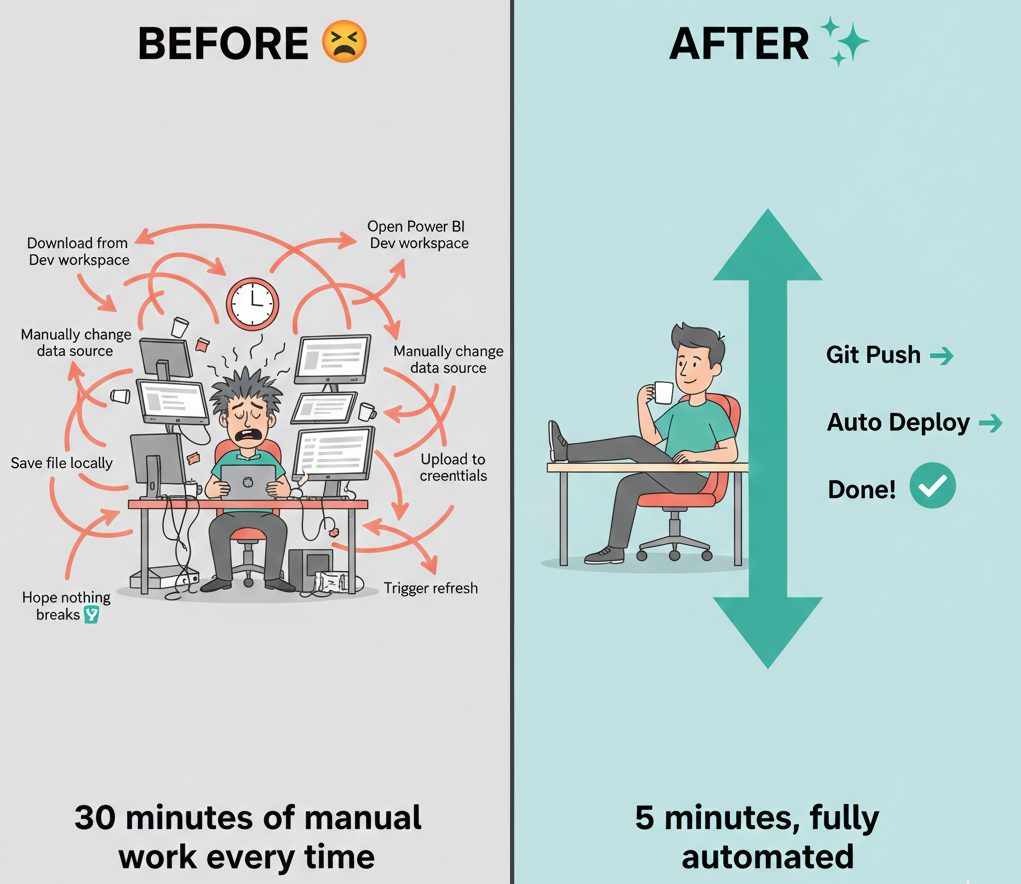
Picture this: It’s 5:30 PM on a Friday. A critical business report needs to go live in Production. The developer downloads the report from the Dev workspace, opens Power BI Desktop, manually changes the data source from the development SharePoint folder to the production folder, saves it, uploads it to the Production workspace, waits for it to process, updates the credentials, triggers a refresh, and hopes nothing breaks.
Sound familiar?
This was our reality. Every Single Deployment.
We knew there had to be a better way. What if pushing a report to GitHub could automatically deploy it to all environments with the correct data sources – no human intervention required?
That’s exactly what we built.
What We Set Out to Acheive
Our goals were straightforward:
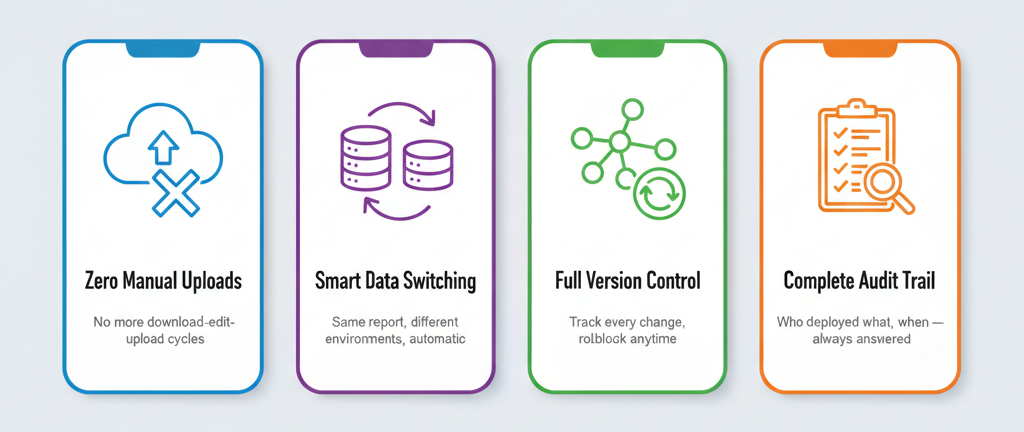
Eliminate manual uploads – No more downloading, editing, and re-uploading reports between environments.
Automatic data source switching – The same report should connect to Dev data in Dev workspace and Production data in Production workspace, automatically.
Version control everything – Know exactly which version of a report is deployed where, and be able to roll back if needed.
Complete audit trail – Answer “who deployed what and when” without detective work.
The tech stack we used
We didn’t reinvent the wheel. We leveraged tools that most enterprises already have access to:
| Component | Role |
|---|---|
| GitHub | Single source of truth for all report files |
| Azure DevOps | Pipeline orchestration and deployment automation |
| Azure AD Service Principal | Secure, password-less authentication |
| Power BI | Programmatic publishing and configuration |
| Visual Studio Code/GitBash | Scripting the deployment logic |
We didn’t reinvent the wheel. We leveraged tools that most enterprises already have access to:
The Journey : Key milestones
Milestone 01: Getting machines to talk to Power BI
The first challenge was authentication. How do you let an automated pipeline publish reports to Power BI without a human logging in?
The answer: Azure AD Service Principal
Think of it as a robot identity. We registered an application in Azure AD, gave it the right permissions to interact with Power BI, and added it as a member to our workspaces. Now our pipeline could authenticate and perform actions just like a human user – but without any manual login.
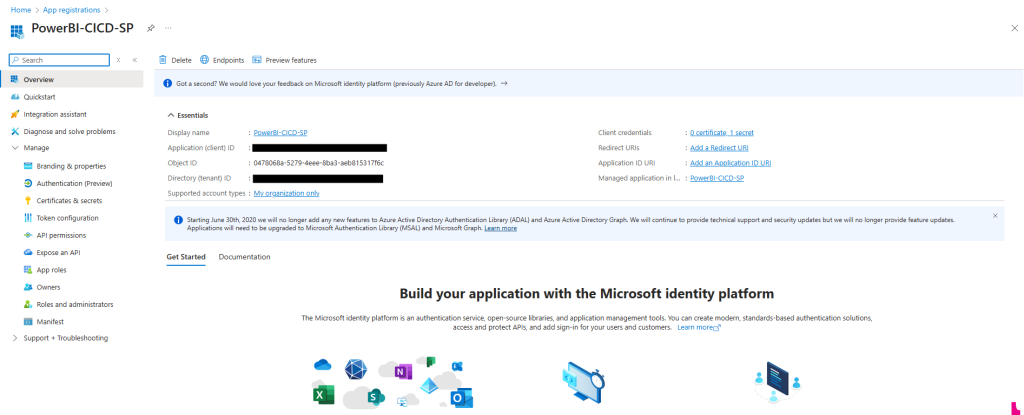
Key Insight: Don’t forget to enable Service Principal access in the Power BI Admin Portal. This setting is off by default and is the most common reason pipelines fail on the first try.
Milestone 02: Making Reports Environment-Aware
Here’s where things got interesting. We needed the same .pbix file to connect to different data sources depending on where it’s deployed.
The solution: Power BI Parameters.
Instead of hardcoding the SharePoint folder path inside the report, we created a parameter. The report asks “where should I get data from?” and the pipeline answers differently for each environment.
DEV Environment → Points to /Development/Data folder
PROD Environment → Points to /Production/Data folder
PROD Environment → Points to /Production/Data folder
Same report. Different data. Zero manual editing.
Key Insight: Design your parameters thoughtfully upfront. Think about everything that might differ between environments: file paths, server names, database names, even date filters
Milestone 03: Building the Automated Pipeline
With authentication and parameterization in place, we built the deployment pipeline in Azure DevOps.
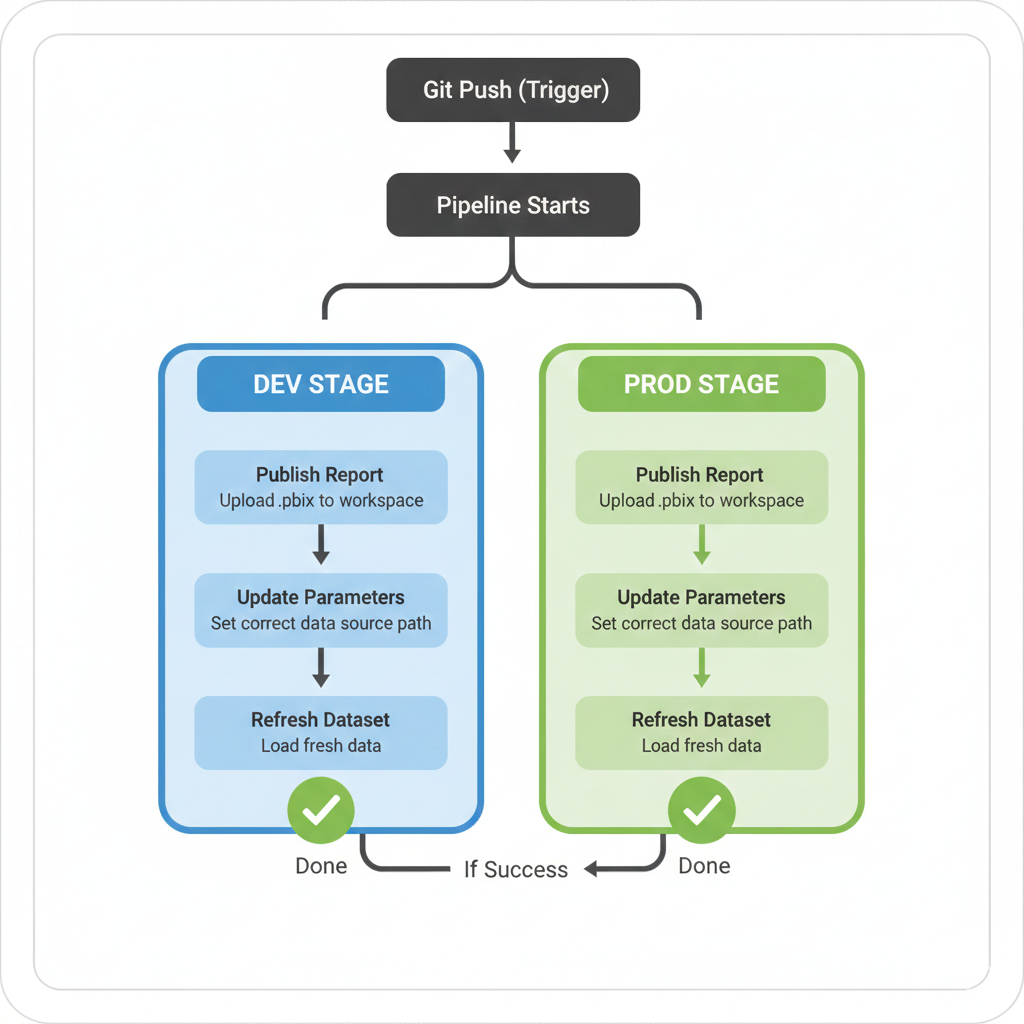
The pipeline does three things in sequence:
- Publish – Takes the .pbix file from GitHub and uploads it to the Power BI workspace.
- Configure – Updates the data source parameter to point to the correct environment’s data.
- Refresh – Triggers a dataset refresh so the report displays fresh data immediately.
This sequence runs first for the Dev environment. If successful, it automatically promotes to Production.
Key Insight: Use Azure DevOps Variable Groups to store environment-specific values. Keep secrets like Client Secret locked and never visible in logs.
Milestone 04: Connecting GitHub to Trigger Deployments
The final piece was making everything automatic. We configured a webhook so that whenever someone pushes changes to the main branch in GitHub, the Azure DevOps pipeline triggers immediately.
No buttons to click. No deployments to remember. Push your code, grab a coffee, and by the time you’re back, your report is live in all environments.
The "Aha!" Moments and Challenges
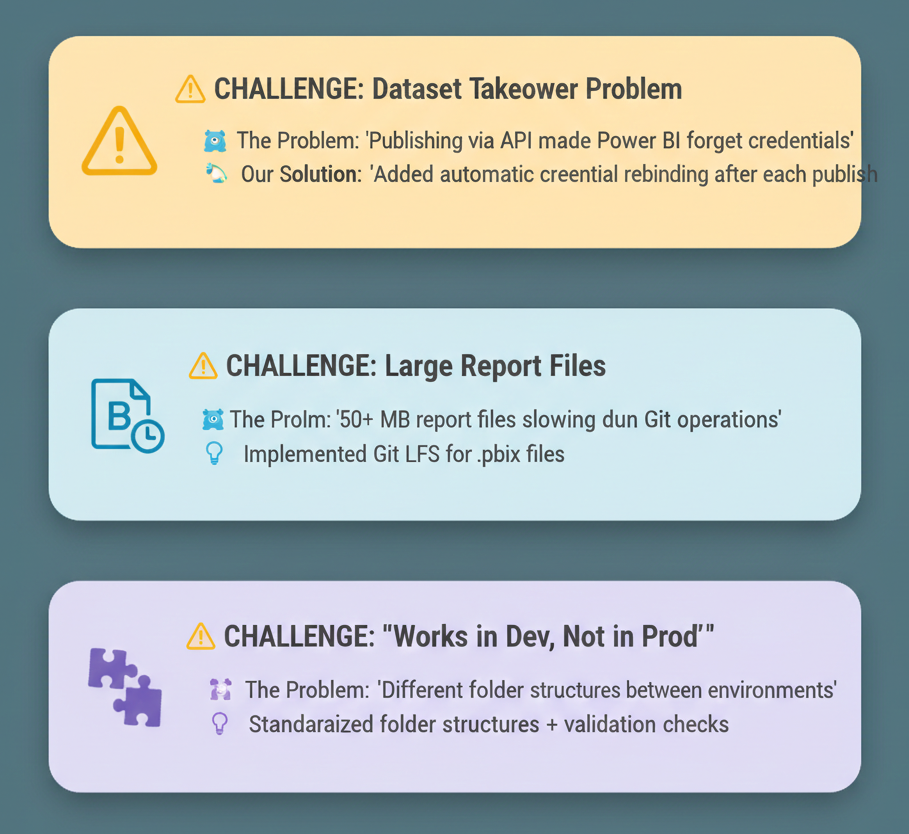
Challenge: The Dataset Takeover Problem
The Problem: When you publish a report via API, Power BI sometimes “forgets” the data source credentials. We spent hours debugging why refreshes failed after deployment.
The Fix: We added a step in our pipeline to explicitly rebind credentials after each publish. It’s an extra API call, but it ensures refreshes never fail due to credential issues.
Challenge: Large Report Files Slowing Down Git
The Problem: Some of our reports with embedded images were 50+ MB. Git wasn’t happy.
The Fix: We implemented Git LFS (Large File Storage) for .pbix files. Repository stays fast, history stays clean.
Challenge: "It Works in Dev But Not in Prod"
The Problem: Classic. Turned out our Dev and Prod SharePoint folders had slightly different structures.
The Fix: We standardized folder structures across environments and added validation steps to the pipeline that check if the target data source is accessible before attempting to refresh.
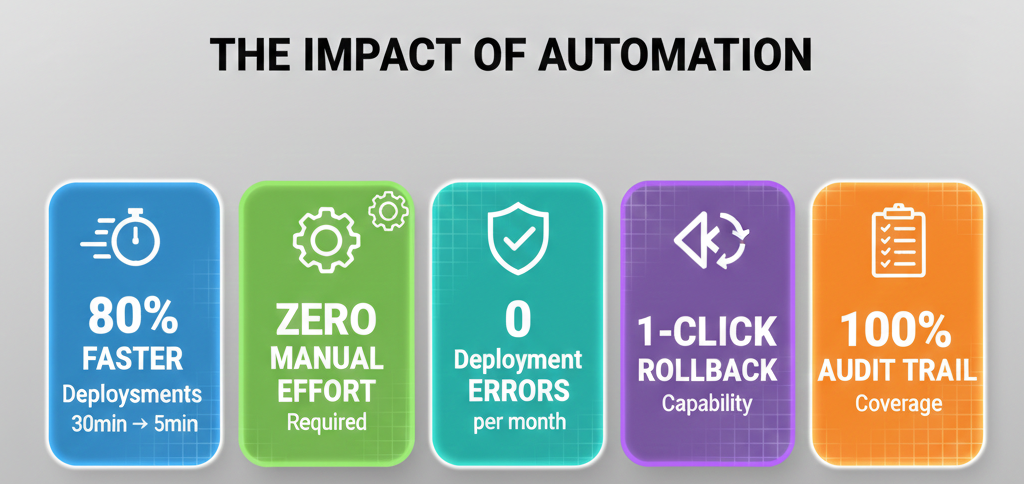
The Results: By the Numbers
After implementing our CI/CD pipeline, the transformation was dramatic:
| Metric | Result |
|---|---|
| Faster Deployments | 80% |
| Manual Effort | Zero |
| Deployment Errors | 0 |
| Rollback Capability | 1-Click |
| Audit Trail Coverage | 100% |
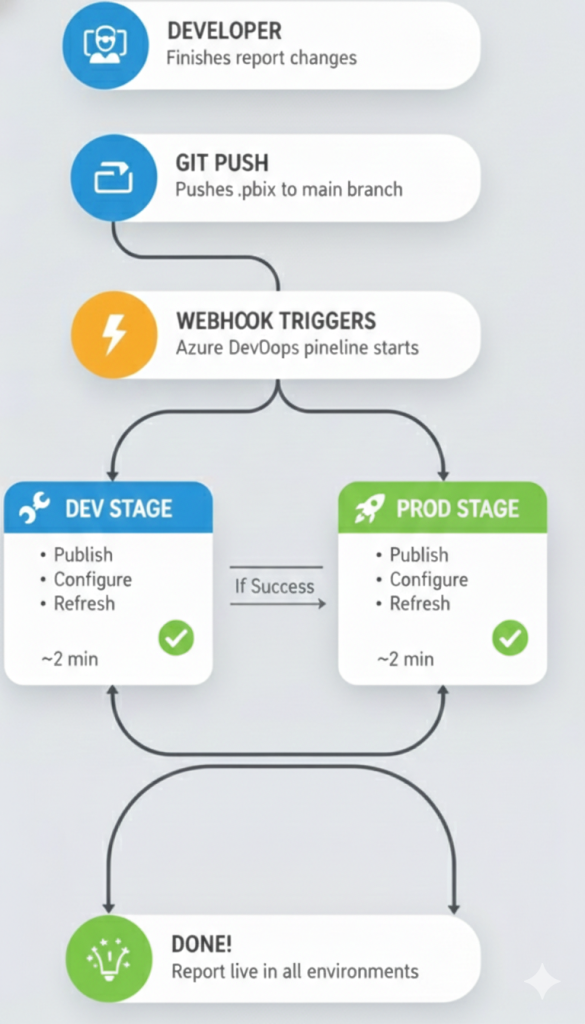
What the Automated Flow Looks Like Today
Here’s our deployment process now:
- Developer – Finishes report changes in Power BI Desktop
- Git Push – Pushes .pbix file to main branch on GitHub
- Webhook Triggers – Azure DevOps pipeline starts automatically
- DEV Stage – Publish → Configure data source → Refresh dataset → Success!
- PROD Stage – Publish → Configure data source → Refresh dataset → Success!
- Notification Sent – Team notified via Slack or Microsoft Teams
- Done! – Report is live in all environments. Developer enjoys coffee.
Key Takeaways for Your Organization
If you’re considering automating your Power BI deployments, here’s our advice:
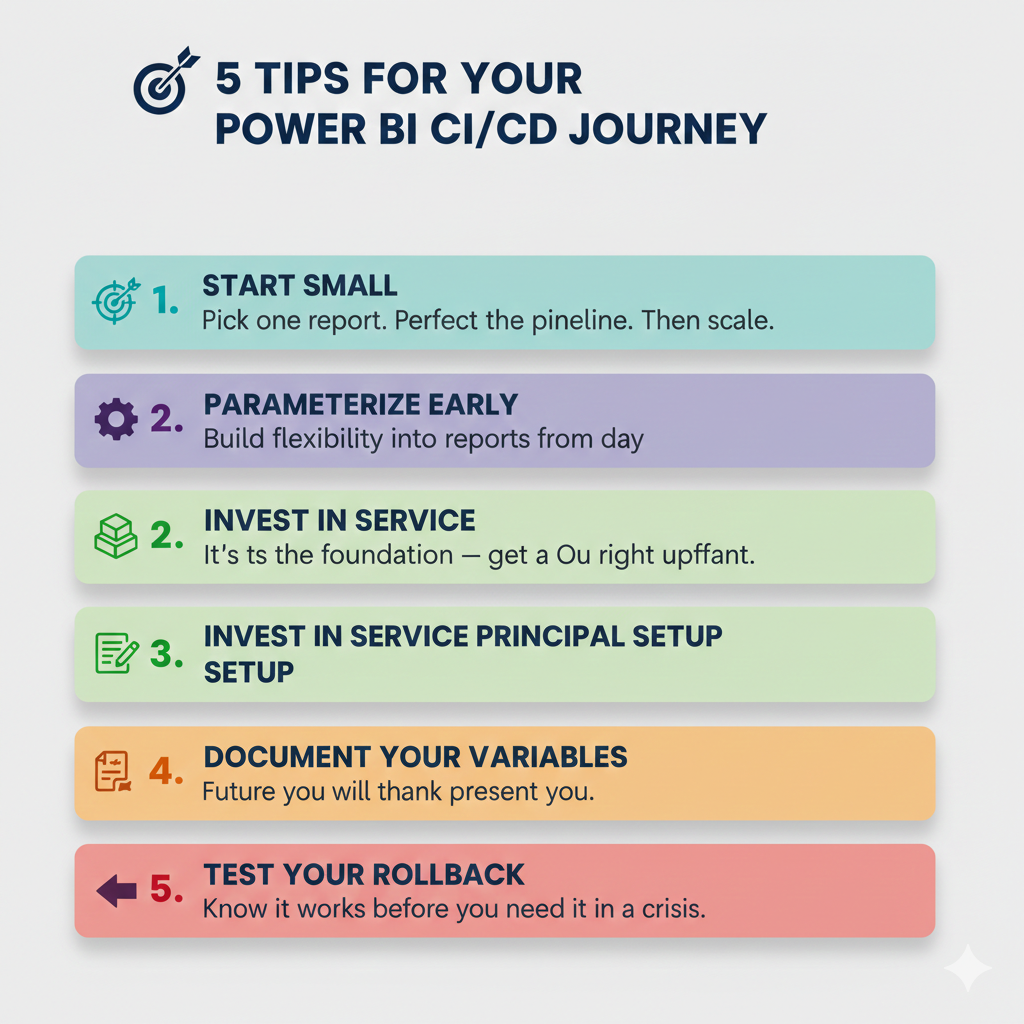
- Start Small – Pick one report. Perfect the pipeline. Then scale to others.
- Parameterize Early – Build flexibility into reports from day one – it’s harder to retrofit later.
- Invest in Service Principal Setup – It’s the foundation for all automation – get it right upfront.
- Document Your Variables – Future you (and your colleagues) will thank present you.
- Test Your Rollback – Know it works before you need it during a production crisis.
Wrapping Up
What started as frustration with manual deployments turned into a robust, automated pipeline that saves our team hours every week. More importantly, it eliminated an entire category of human errors and gave us confidence that what’s in Git is what’s in Production.
The tools we used – GitHub, Azure DevOps, Azure Service Principals, Power BI -aren’t exotic. They’re available to most enterprise teams today. The value isn’t in the tools themselves; it’s in connecting them into a seamless workflow.
If your team is still manually promoting Power BI reports between environments, I hope this gives you a roadmap to automate that pain away. Trust me, your Friday evenings will thank you.
Pat2532
February 13, 2026
Share our products, reap the rewards—apply to our affiliate program!